iPhone Lock Screen Workout Timer: How Live Activities Keep Your HIIT on Track
Live Activities put your interval timer — phase, remaining time, and round count — on the iPhone Lock Screen (iOS 16.1+) so you never unlock mid-set. No fumbling, no lost intervals.
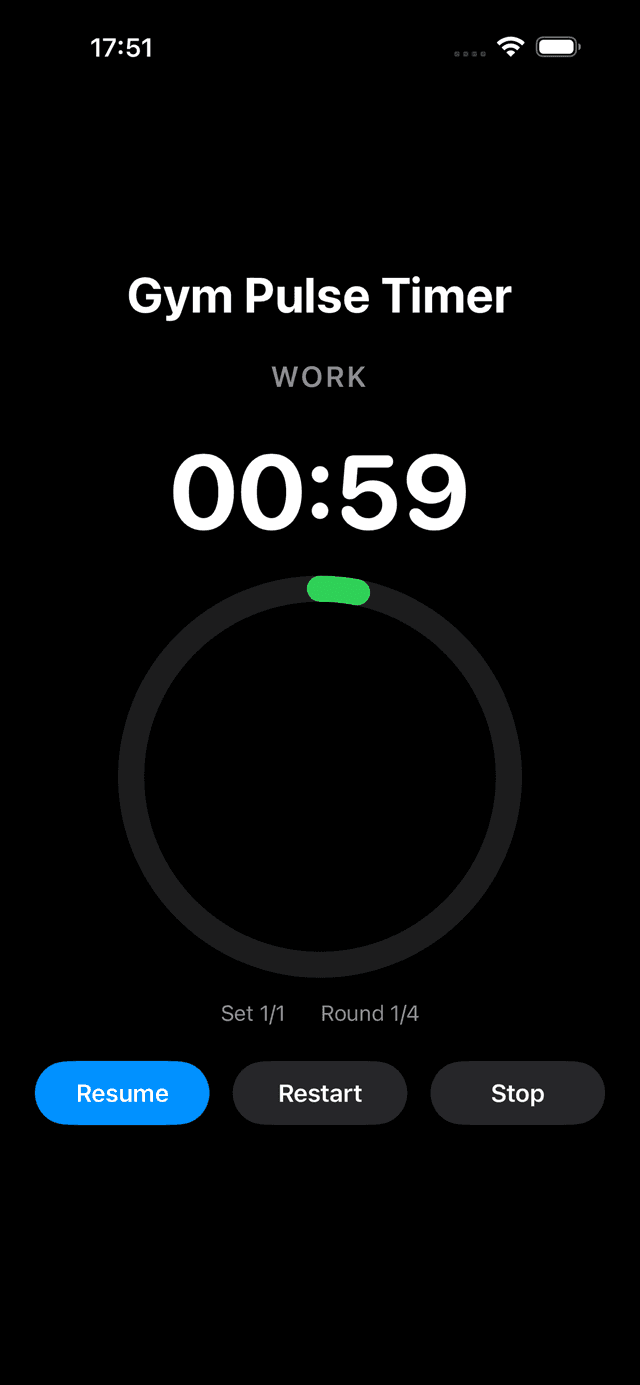
GymPulseTimer's glanceable run view — phase, time remaining, and round count, the same trio that surfaces on the Lock Screen Live Activity.
The Problem: Why You Lose Track of Intervals When Your Screen Locks
Picture this: you're three rounds into a brutal HIIT circuit. Sweat is dripping off your forehead, your heart rate is through the roof, and you're supposed to be counting down your 30-second rest. But your iPhone screen went dark 15 seconds ago because auto-lock kicked in. Now you're standing there, wiping your hands on your shirt, trying to press the side button, swiping up, maybe failing Face ID because you're a sweaty mess — and by the time you finally see your timer, you've either rested too long or not long enough.
This is the single most common frustration with workout timer apps. Most interval timers were designed in an era when you had to keep the screen on to see anything. That meant either disabling auto-lock entirely (draining your battery and risking accidental touches) or constantly waking your phone between sets. Neither option works when you're mid-workout with chalk on your hands or gripping a kettlebell.
The result? You lose your rhythm. You guess at rest times. You skip rounds because you lost count. Your carefully programmed intervals become meaningless because you can't actually see them when it matters most.
What Are Live Activities & Dynamic Island?
Apple introduced Live Activities in iOS 16.1, and they were refined significantly in iOS 17. In simple terms, Live Activities let an app display real-time, updating information directly on your Lock Screen — without you needing to unlock your phone or open the app. Think of it like a persistent notification that actually updates its content live.
Dynamic Island takes the same concept further. On iPhones that have the pill-shaped cutout at the top of the screen (iPhone 14 Pro and later), your Live Activity can also appear as a compact, always-visible widget around the camera area. This means you can see your timer even while you're using a different app — checking a playlist in Spotify, replying to a message, or looking at your workout log.
Here's which iPhones support what:
- Lock Screen Live Activities — all iPhones running iOS 16.1 or later (iPhone 8 and newer)
- Dynamic Island — iPhone 14 Pro, iPhone 14 Pro Max, and all iPhone 15/16 models and later
If you have any relatively recent iPhone, you already have the hardware you need. The only question is whether your timer app actually supports these features.
How a Lock Screen Timer Changes Your Workout
Having your workout timer on the Lock Screen might sound like a minor convenience. In practice, it fundamentally changes how you train. Here's why:
- No unlocking required — just glance at your phone. The timer is right there on the Lock Screen with your current phase, time remaining, and round count. Sweaty hands, chalk, gloves — none of it matters because you never need to touch the screen.
- Visible from across the gym — set your phone on a bench, a rack, or the floor. The Lock Screen timer uses large, high-contrast text that you can read from several meters away. No more hovering over your phone between sets.
- Glanceable phase information — the best Lock Screen timers don't just show a countdown. They show you what phase you're in (work, rest, get ready), which round you're on, and how much time remains. One glance tells you everything.
- Works while using other apps — with Dynamic Island support, you can switch to your music app, check a message, or log your weights in a separate app, and your timer stays visible at the top of the screen. Tap it to jump back to the full timer view instantly.
- Battery-friendly — Live Activities are designed by Apple to be extremely power-efficient. They use far less battery than keeping the screen on with the app in the foreground. You get always-visible timing without the battery drain.
The bottom line is that a Lock Screen workout timer removes friction. Every second you spend unlocking your phone or navigating back to your timer app is a second of broken focus. Live Activities eliminate that entirely.
Which HIIT Timer Apps Support Live Activities in 2026?
Not all timer apps have embraced Live Activities. Some added minimal support. Others built their entire experience around it. Here's how the main options compare:
1. GymPulseTimer
GymPulseTimer was built from the ground up with Live Activities as a core feature, not an afterthought. When you start any interval timer, your Lock Screen immediately shows a dedicated workout widget with your current phase displayed in distinct colors (green for work, orange for rest, blue for get ready), the time remaining in large readable digits, and your current round out of total rounds.
The Dynamic Island integration is equally polished. The compact view shows your countdown and phase at a glance. The expanded view (long-press the Dynamic Island) gives you full details including phase, time, and round count. The dark, high-contrast design was specifically chosen so the timer is readable in bright gym lighting.
- Full Lock Screen Live Activity with phase colors
- Dynamic Island compact and expanded views
- Phase, time remaining, and round count always visible
- Dark high-contrast UI designed for gym visibility
- No need to keep the app open or screen unlocked
- Free to use — one-time $4.99 Pro upgrade, no subscription (see our best no-subscription interval timer apps roundup)
2. Seconds Interval Timer
Seconds added Live Activities support in a later update. The Lock Screen widget shows a basic countdown and interval name. It works, but the display is more minimal — you may not get the same level of detail (like distinct phase colors or round tracking) without opening the full app. The subscription model means you'll need a paid plan for full features.
3. Tabata Timer — HIIT Workouts
Tabata Timer has basic Live Activities support showing the countdown on the Lock Screen. Since it's focused primarily on the standard Tabata protocol (20 seconds on, 10 seconds off), the Live Activity is simpler. If you only do classic Tabata, this may be enough, but it lacks flexibility for custom intervals and detailed phase information on the Lock Screen.
4. SmartWOD Timer
SmartWOD is geared toward CrossFit-style workouts (AMRAP, EMOM, For Time). It has Live Activities support for its timers, and the Lock Screen display shows the running clock. However, because it's designed for CrossFit rather than traditional HIIT intervals, the phase-based information (work vs. rest vs. get ready) isn't as prominently featured in the Live Activity.
The key differentiator is depth of integration. GymPulseTimer treats the Lock Screen as a first-class display surface — not just a miniature mirror of the in-app timer, but a purpose-built interface designed for the way you actually use your phone during a workout.
Setting Up Your iPhone Lock Screen Workout Timer (Step-by-Step)
Getting your iPhone Lock Screen workout timer running with GymPulseTimer takes less than a minute. Here's exactly how to do it:
Step 1: Download GymPulseTimer
Install GymPulseTimer from the App Store. It's free to download and the core timer features — including Live Activities — work without any purchase. The app is also available on Google Play for Android with the same free tier, though Live Activities remain an iOS-only feature.
Step 2: Create Your Interval Preset
Open the app and create a new preset. Set your work duration (e.g., 40 seconds), rest duration (e.g., 20 seconds), number of rounds (e.g., 8), and optionally a get-ready countdown (e.g., 5 seconds before each work phase). Give it a name like “HIIT 40/20” so you can find it quickly next time.
Step 3: Allow Live Activities
The first time you start a timer, iOS will ask if GymPulseTimer can display Live Activities. Tap “Allow.” You can also check this in Settings > GymPulseTimer > Live Activities. Make sure it's enabled.
Step 4: Start Your Timer
Tap your saved preset and hit start. The timer begins immediately in the app with full-screen phase display, audio cues, and haptic feedback.
Step 5: Lock Your Phone and Train
Press the side button to lock your screen. Your workout timer now appears on the Lock Screen as a Live Activity. You'll see the current phase highlighted in color (green for work, orange for rest, blue for get ready), the time counting down in large digits, and your round progress. Place your phone wherever you can see it and focus on your training.
Step 6: Use Dynamic Island (iPhone 14 Pro+)
If you have an iPhone with Dynamic Island, you'll also see a compact timer in the island when you switch away from GymPulseTimer to another app. Long-press it to see an expanded view with full phase and round details. Tap it to jump straight back into the timer.
That's it. Once your preset is saved, future workouts start with a single tap. Your Lock Screen becomes your workout dashboard automatically. No settings to toggle, no keep-screen-on hacks, no workarounds. It just works.
Tips for Getting the Most Out of Your Lock Screen Timer
Once you start using Live Activities for your workouts, a few small adjustments can make the experience even better:
- Turn on Always-On Display — if your iPhone supports it (iPhone 14 Pro and later), the always-on display keeps the Live Activity visible without even tapping the screen. Your timer literally never disappears.
- Use a phone stand or mount — prop your phone at eye level near your station. Since the Lock Screen timer is readable from a distance, you can place it anywhere convenient without needing to hold it.
- Pair with AirPods for audio cues — GymPulseTimer's audio and haptic cues work even when the screen is locked. With wireless earbuds, you get both a visual and an audible countdown — you might not even need to look at the screen.
- Save presets for different workouts — create presets for each type of session (Tabata, EMOM-style, circuit training) so you never have to configure intervals mid-workout. One tap, lock, train.
The Bottom Line
Your iPhone Lock Screen is the most underutilized piece of workout technology you already own. With Live Activities, it becomes a real-time training display that shows your phase, time, and rounds without any interaction at all. No unlocking, no swiping, no battery drain from keeping the screen on.
GymPulseTimer was designed with this exact use case as its core feature. The phase-colored Lock Screen widget, the Dynamic Island integration, the high-contrast gym-ready UI — it all exists because a HIIT timer should work the way you actually train: phone locked, hands busy, eyes on the timer from across the room.
Download it for free and see the difference for yourself.
Ready to try GymPulseTimer?
Free download. No account required. No subscription.