Apple Watch Interval Timer: Setup Guide (2026)
Your Apple Watch is strapped to your wrist during every workout — but setting up a proper interval timer on it isn't as obvious as it should be. Here's how to do it right, and how to pair the timer with Apple's heart-rate zones for measurably smarter HIIT.
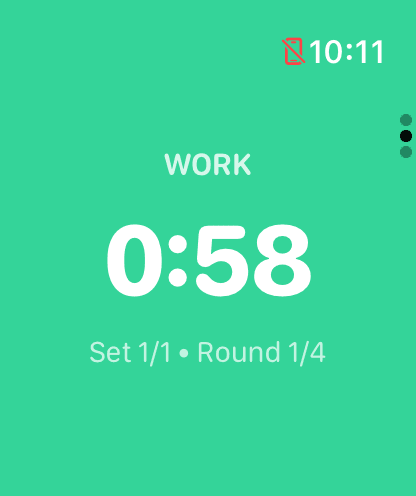
GymPulseTimer mid-Work on Apple Watch — phase-coloured ring, haptic taps at every transition.
Can You Set Up an Interval Timer on Apple Watch?
Yes — but the experience varies dramatically depending on which tool you use. Apple Watch ships with a built-in Workout app and a basic Timer app, but neither was designed specifically for structured interval training like Tabata, HIIT, or circuit workouts.
The built-in Timer app is a simple countdown — it can't alternate between work and rest phases, track rounds, or give you haptic cues at transitions. The Workout app added Custom Workouts in watchOS 9, which gets closer, but it still has significant limitations for interval training.
The good news: third-party apps on the App Store fill this gap perfectly. A dedicated Apple Watch interval timer app can run independently on the watch (no iPhone needed during the workout), deliver haptic alerts on your wrist, and handle any interval protocol you throw at it. See our roundup of the best interval timer apps with no subscription for how the watch options compare.
Using the Built-in Workout App for Intervals
Apple's Workout app introduced Custom Workouts starting with watchOS 9. This lets you create structured workouts with alternating work and recovery intervals. Here's how to set it up:
- Open the Workout app on your Apple Watch.
- Scroll to the workout type you want (e.g., HIIT, Functional Strength Training, or Mixed Cardio).
- Tap the three dots (…) next to the workout type.
- Tap Create Workout, then choose Custom.
- Add a Work interval and set the duration (e.g., 30 seconds).
- Add a Recovery interval and set the duration (e.g., 30 seconds).
- Optionally, repeat the block for multiple rounds.
This works — but it comes with real limitations that matter during intense workouts:
- Metrics obscure the timer — the default view shows heart rate, calories, and elapsed time. Your interval countdown is buried, which means you're scrolling through screens mid-burpee.
- Rest time pollutes pace data — because recovery periods are part of the workout session, your average pace, split times, and calorie burn calculations include standing-around time. This skews your stats.
- No audio or strong haptic cues — the built-in app uses a subtle tap when intervals transition. In a noisy gym with music playing, it's easy to miss entirely.
- Complex setup for simple protocols — creating a basic Tabata 20/10 workout requires tapping through multiple screens and manually adding each interval. There are no presets or templates.
- No get-ready countdown — the workout starts immediately after you tap Go. There's no 5- or 10-second preparation phase to get into position.
For casual interval work, Apple's Custom Workouts are functional. But if interval training is a core part of your routine, you'll quickly feel the friction.
Why Third-Party Timer Apps Work Better for HIIT
Dedicated interval timer apps exist because the built-in tools were designed for general fitness tracking, not structured interval protocols. A purpose-built timer app gives you:
- Large, glanceable countdown display — the current interval and remaining time are front and center. No scrolling needed.
- Color-coded phases — work, rest, and get-ready phases are visually distinct, so you know what's happening at a glance even when you're gasping for air.
- Strong haptic patterns — different vibration patterns for work, rest, and halfway marks. You feel the transition even when you can't see or hear your watch.
- Presets and quick setup — save your favorite interval configurations and start a workout in two taps instead of building it from scratch every time.
- Runs independently on the watch — leave your iPhone in the locker. A good Apple Watch timer app runs entirely on the watch with no phone connection required.
- Get-ready countdowns — a preparation phase before the first work interval lets you get into position safely.
If you're new to interval training, our beginner's guide to interval training covers the fundamentals before you dive into setup.
How to Set Up GymPulseTimer on Apple Watch
GymPulseTimer is a dedicated interval timer built specifically for HIIT, Tabata, and circuit training on iPhone and Apple Watch. Here's how to get it running on your wrist:
Step 1: Install from the App Store
Download GymPulseTimer on your iPhone. The Apple Watch app installs automatically if you have automatic app installs enabled. If not, open the Watch app on your iPhone, scroll to “Available Apps,” and tap Install next to GymPulseTimer.
Step 2: Configure Your Intervals on iPhone
Open GymPulseTimer on your iPhone and set up your interval workout:
- Set your work duration (e.g., 30 seconds).
- Set your rest duration (e.g., 15 seconds).
- Set the number of rounds (e.g., 8 rounds).
- Optionally configure a get-ready countdown (5–10 seconds recommended).
Your configuration syncs to Apple Watch automatically. No manual export or copying needed.
Step 3: Start Your Workout on Apple Watch
Open GymPulseTimer directly on your Apple Watch. You'll see your synced interval setup ready to go. Tap Start, and the get-ready countdown begins. From there, the app handles everything:
- Green screen during work intervals with a large countdown timer.
- Orange screen during rest intervals.
- Haptic taps at every transition.
- Current round number displayed prominently.
- Pause and resume with a single tap.
Step 4: Save as a Preset (Optional)
If you run the same interval workout regularly, save it as a preset. Next time, you open the app on your watch and start in two taps — no configuration required.
Run Interval Workouts Without Your iPhone
One of the most common questions about Apple Watch timer apps: “Do I need my iPhone nearby?” With GymPulseTimer, the answer is no.
GymPulseTimer's watch app runs independently once your presets sync from the iPhone. After that, it operates entirely on the watch. This means you can:
- Leave your phone in the locker — no Bluetooth connection required during the workout.
- Work out anywhere — outdoor park workouts, hotel gyms, or anywhere you don't want to carry your phone.
- Avoid distractions — no notifications popping up on your phone screen to break your focus.
Your interval settings sync when both devices are in range, so any changes you make on your iPhone are ready on your watch next time you open the app. But once you start a workout, the watch handles everything locally.
Haptic Alerts vs Audio Cues: What Works at the Gym
At the gym, audio cues compete with background music, clanking weights, and other people's conversations. That's why haptic feedback on Apple Watch is so valuable for interval training.
Here's how the two approaches compare:
| Feature | Haptic (Watch) | Audio (Phone) |
|---|---|---|
| Works in noisy gym | Yes | Only if loud enough |
| Doesn't disturb others | Yes | No |
| Works with headphones | Yes (simultaneous) | Yes (interrupts music) |
| Noticeable during high effort | Strong taps on wrist | May miss if phone is away |
| Eyes-free operation | Yes | Yes |
GymPulseTimer uses distinct haptic patterns for different transitions — a strong tap sequence for work-to-rest and rest-to-work, so you know which phase is starting without looking at the screen. Combined with color-coded phases (green for work, orange for rest), you always know where you are in the workout.
Pro tip: if you wear AirPods while training, you get the best of both worlds — haptic taps on your wrist plus audio cues through your earbuds, all without disturbing anyone around you.
Pair Your Intervals with Heart-Rate Zones
An interval timer tells you how long to work and rest. Heart-rate zones tell you how hard. Combine both on the same wrist and your training stops being a guess: every work interval has a target physiological response, and every rest interval has a measurable recovery floor. Apple Watch already tracks your heart rate every second — the trick is reading the zone live and using it to calibrate effort.
Apple Watch divides effort into five zones based on a percentage of your maximum heart rate (commonly estimated as 220 minus your age, then refined over time from your real workout data):
| Zone | % of Max HR | Intensity | Purpose |
|---|---|---|---|
| Zone 1 | 50–60% | Very light | Warm-up, cool-down, active recovery |
| Zone 2 | 60–70% | Light | Base endurance, easy cardio |
| Zone 3 | 70–80% | Moderate | Tempo, sustained aerobic work |
| Zone 4 | 80–90% | Hard | Anaerobic threshold — HIIT work intervals |
| Zone 5 | 90–100% | Maximum | All-out sprints, VO2-max work |
What HIIT looks like in zone-speak
High-intensity interval training is defined by short bursts of near-maximal effort followed by recovery. Translated into zones, that means:
- Work intervals: Zone 4–5 (80–100% MHR). Conversation should not be possible.
- Rest intervals: Zone 1–2 (50–70% MHR). Walk, breathe, recover — do not stay standing still and tense.
- Warm-up & cool-down: Zone 1–2 for 3–5 minutes either side of the working sets.
If your entire session lives in Zone 3, you are doing steady-state cardio — not HIIT. The contrast between work and recovery is what drives the cardiovascular adaptation.
Zone 4 vs Zone 5: when to push, when to back off
Zone 4 and Zone 5 both count as “high intensity” but serve very different purposes. Confusing them is the most common HIIT-on-Apple-Watch mistake.
| Aspect | Zone 4 (Hard) | Zone 5 (Max) |
|---|---|---|
| % of Max HR | 80–90% | 90–100% |
| Sustainable for | 1–5 minutes | 10–60 seconds |
| Primary system | Anaerobic threshold | VO2 max / neuromuscular |
| Best for | Longer intervals (30–90s work) | Short sprints (10–30s work) |
| Recovery needed | 1:1 to 1:2 work-to-rest | 1:3 to 1:5 work-to-rest |
| Example preset | 40s work / 40s rest, 8 rounds | 20s sprint / 60s rest, 6 rounds |
If you can hold what you call “Zone 5” for more than 30–40 seconds, you are almost certainly in upper Zone 4. Genuine Zone 5 should feel unsustainable. Spend most of a HIIT session in Zone 4 with occasional Zone 5 peaks; that combination yields the best progression-to-recovery ratio for someone training 3–5 days per week.
How to read your live zone without breaking the set
Apple Watch shows your current zone in real time inside any workout: start a workout from the Workout app, then scroll or use the Digital Crown to find the Heart Rate Zones view. You will see a bar chart of zone time plus your current zone highlighted. The problem is that staring at it during a sprint kills your output — and unless you scroll back, the timer view is hidden.
The clean workflow: let GymPulseTimer drive the timing on your wrist with haptic taps, and glance at the Apple zone view during rest to calibrate the next round's effort. Practical procedure:
- Start an Apple workout (HIIT or Functional Strength Training) so heart-rate-zone tracking is active.
- Launch GymPulseTimer on the watch and start your preset. Haptic taps now mark every transition.
- Train eyes-down on the exercise. Trust the haptic for timing.
- Glance at the zone during rest. If you are still in Zone 4, extend the rest or push less hard next round; if you dropped to Zone 1, you can push harder.
- Review the zone breakdown afterwards in the Fitness app on iPhone. The proof of a real HIIT session is minutes spent in Zone 4–5.
Wrist heart rate also lags actual effort by 2–5 seconds against a chest strap. Use the live number as a calibration signal, not a verdict; trust perceived effort during the interval itself.
Custom zones if the defaults feel wrong
Apple Watch picks zones from your age and health data. If the numbers consistently disagree with how the effort feels, override them: open Settings on the watch, tap Workout, then Heart Rate Zones, and switch from Automatic to Manual. The same screen exists in the Watch app on iPhone under Workout > Heart Rate Zones. If you have a real maximum from a lab or field test (a max sprint with a chest strap), use that as your ceiling instead of 220 minus your age.
Apple Watch Interval Timer Settings for Popular Workouts
Not sure which interval settings to use? Here are the most common protocols you can set up on your Apple Watch with GymPulseTimer, with the heart-rate zones each one is designed to hit:
| Workout | Work | Rest | Rounds | Target zone |
|---|---|---|---|---|
| Tabata (20/10) | 20s | 10s | 8 | Z4 → Z5 |
| 30/30 HIIT | 30s | 30s | 10 | Z4 |
| 40/20 Circuit | 40s | 20s | 8 | Z4 |
| EMOM (Every Minute) | 40s | 20s | 10 | Z4 |
| Boxing Rounds | 3 min | 1 min | 6 | Z3 → Z4 |
| Beginner HIIT | 20s | 40s | 8 | Z3 → Z4 |
| Zone 5 Sprint Bursts | 15s | 60s | 8 | Z5 |
Each of these can be set up in GymPulseTimer in under 30 seconds and saved as a preset for instant access from your Apple Watch. The Tabata protocol is perfect for short, intense Zone-4-into-Zone-5 sessions, while the 30/30 HIIT format is the most versatile option for general conditioning anchored in Zone 4.
For longer workouts, try stacking multiple protocols: start with a Tabata round for warmup, transition to 40/20 circuits for the main block, and finish with a 30/30 cooldown round. GymPulseTimer lets you adjust intervals quickly between blocks without rebuilding your workout from scratch. Looking for a structured multi-week plan that uses zones? The 30-day HIIT challenge is a progressive program you can pair with zone tracking from week one.
FAQ: Apple Watch Interval Timer
Can I use Apple Watch as an interval timer without my iPhone?
Yes. Both Apple's built-in Workout app and third-party apps like GymPulseTimer can run interval timers directly on the watch without an iPhone connection — GymPulseTimer's watch app runs independently once presets sync from the iPhone. Configure your intervals while your phone is nearby, then leave it behind for your workout.
Does Apple Watch have a built-in interval timer?
Apple Watch has a Custom Workout feature in the Workout app (watchOS 9+) that supports work/recovery intervals. However, it lacks dedicated interval timer features like presets, strong haptic patterns, color-coded phases, and get-ready countdowns. The standalone Timer app is a simple countdown only — it can't alternate between phases.
What is the best interval timer app for Apple Watch?
GymPulseTimer is designed specifically for interval training on Apple Watch and iPhone. It features color-coded work/rest phases, strong haptic alerts, a get-ready countdown, configurable rounds, and a watch app that runs independently once presets sync from the iPhone. It's free to download with no account required.
How do I feel interval transitions if I can't hear my watch?
Apple Watch haptic feedback is the answer. Interval timer apps like GymPulseTimer use distinct haptic tap patterns for work-to-rest and rest-to-work transitions. You feel the change on your wrist even in a loud gym, during intense effort, or while wearing headphones.
Can I set a Tabata timer on Apple Watch?
Absolutely. Set work to 20 seconds, rest to 10 seconds, and rounds to 8 — that's the classic Tabata protocol. In GymPulseTimer, you can save this as a preset so it's ready to go on your watch with a single tap.
Does the interval timer work on all Apple Watch models?
GymPulseTimer supports Apple Watch models running watchOS 10 and later. This includes Apple Watch Series 6 and newer, Apple Watch SE (2nd generation), and Apple Watch Ultra models. All haptic and visual features work identically across supported models.
What heart-rate zones should I target during HIIT on Apple Watch?
Push work intervals into Zone 4 or Zone 5 (80–100% of maximum heart rate); let rest intervals drop you to Zone 1 or Zone 2 (50–70%). The contrast is what makes a session genuinely high-intensity. If you stay in Zone 3 the whole time, you are doing steady-state cardio.
What is the difference between Zone 4 and Zone 5 for HIIT?
Zone 4 (80–90% MHR) is the anaerobic-threshold zone you can sustain for 1–5 minutes, ideal for 30–90 second work intervals at 1:1 or 1:2 rest. Zone 5 (90–100%) targets VO2 max and neuromuscular power, lasts 10–60 seconds, and needs 1:3 to 1:5 work-to-rest ratios — for instance 20-second sprints with 60 seconds of recovery.
Ready to try GymPulseTimer on Apple Watch?
Free download. No account required. No subscription.